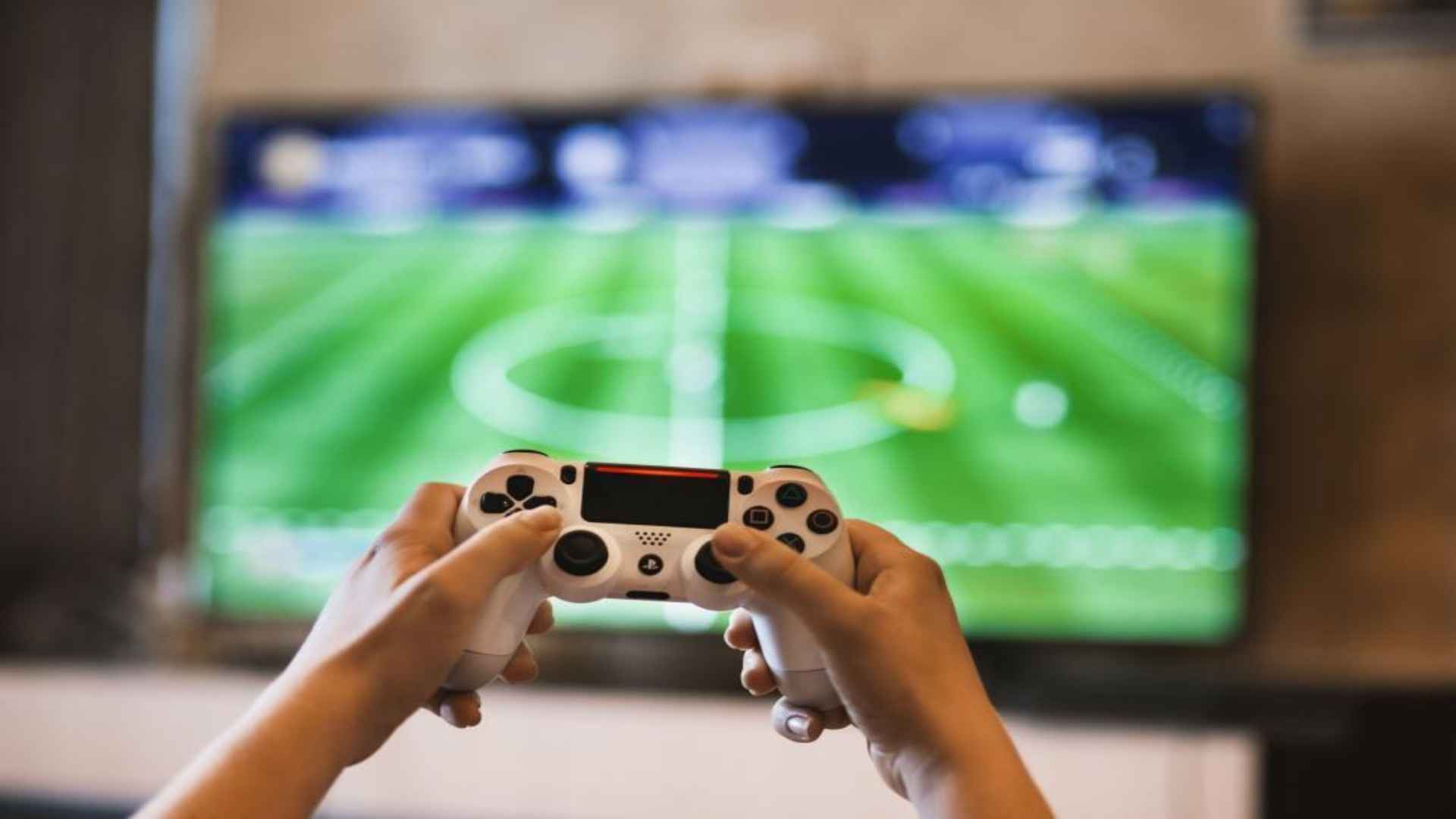
A flashing light on your DualShock 4 controller can disrupt a gaming session unexpectedly. Understanding what this signal means helps players resolve connection issues quickly and return to playing their favorite titles without lingering technical confusion.
Understanding the Blinking White Light
When the light bar on a PlayStation 4 controller flashes white, it indicates that the gamepad is attempting to pair with the console or another device. The controller sends out a wireless signal searching for an established host connection. If the sync fails or times out, the light continues to blink indefinitely until turned off.
This behavior is distinct from a solid light, which confirms a successful connection. Identifying the exact pattern helps narrow down whether the issue stems from bluetooth interference, low battery reserves, or a system software miscommunication.
Common Causes of Connection Failures
One primary reason for a persistent blinking light is a broken pairing link between the hardware components. This often occurs when using the gamepad across multiple platforms, such as PCs or mobile devices. Switching back to the console requires re-establishing the original link.
Faulty USB cables can also prevent the device from syncing properly during wired setup attempts. Using a charge-only cable instead of a dedicated data transfer cable stops the console from recognizing the controller signals entirely.
Simple Steps to Restore Functionality
To resolve sync issues, connect the controller directly to the console using a high-quality USB data cable. Press the PlayStation button in the center of the gamepad to initiate a hardwire pair command. In most scenarios, this immediately binds the device and turns the light solid blue or white.
If a simple cable sync fails, performing a complete pinhole reset often clears temporary memory errors. Locate the small reset button on the back of the controller near the L2 shoulder button, hold it down with a paperclip for five seconds, and reconnect it to your system.
Preventing Future Wireless Disruptions
Maintaining a clean wireless environment prevents signal drops between your gaming gear and host console. Keep potential sources of radio frequency interference, such as Wi-Fi routers or wireless headsets, at a reasonable distance from the setup.
Regularly updating system firmware ensures full compatibility across all accessories. Keeping your devices charged reduces power-related pairing errors during high-intensity gaming sessions.